A Simple Guide to Smartphones for Seniors Over 60

Mastering Mobile Technology for Connection, Independence, and Peace of Mind
Are you over 60 and feeling a little intimidated by the world of smartphones?
You’re not alone!
It might seem like everyone else is effortlessly navigating these pocket-sized computers, but the truth is, many seniors are just now discovering the incredible benefits these devices offer.
It’s 2026, and smartphones are no longer a luxury; they’re a vital tool for staying connected, managing your health, and enjoying a more independent life.
The good news?
Getting started with a smartphone is easier than you think.
This guide is designed specifically for seniors like you, offering a simple, step-by-step approach to mastering mobile technology.
Forget the jargon and complicated instructions.
We’ll break down everything you need to know, from understanding what a smartphone is to using its most essential features.
What is a Smartphone, Anyway?
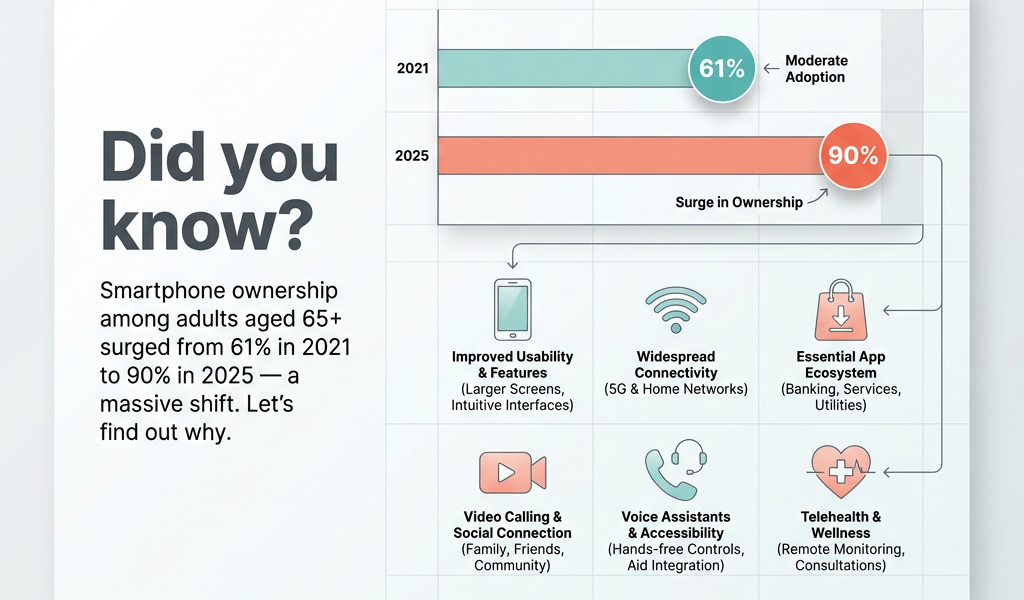
Simply put, a smartphone is a mobile phone with a built-in computer.
Unlike the old rotary phones or even basic cell phones, smartphones can do so much more than just make calls.
They connect to the internet, run apps (small software programs), take photos and videos, send emails, and even help you manage your health .
Why should Seniors Care?
For seniors, smartphones are a gateway to:
Staying Connected: Video call your grandkids, text family members, and keep up with friends on social media.
Managing Health: Track medications, monitor your heart rate, and even access telehealth appointments from the comfort of your home.
Maintaining Independence: Use navigation apps to get around town, order groceries online, and manage your finances with ease.
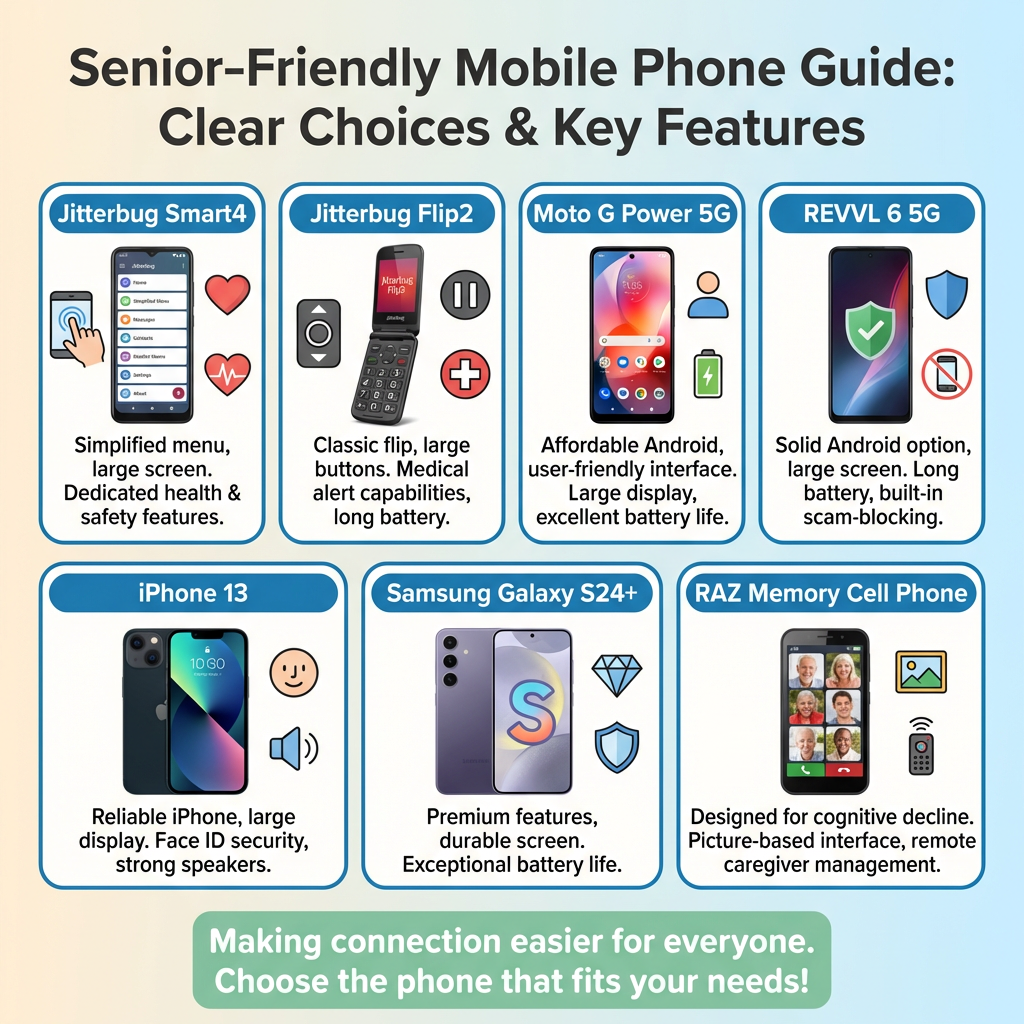
Selecting the Right Smartphone: Best Devices for Seniors in 2026
Choosing the right smartphone can feel overwhelming, but here are a few top contenders designed with seniors in mind:
Mastering iPhone Basics: Essential Tips for Apple Device Users
If you’ve chosen an iPhone, here are a few essential tips to get you started:
Initial Setup: Follow the on-screen instructions to set up your language, Wi-Fi, Face ID, and Apple ID .
Home Screen Navigation: Organize your apps by placing the most important ones in the dock (the row of apps at the bottom of the screen) .
Swiping, Swipe left to right for the Today View (weather, calendar), and swipe down from the top for the Control Center (Wi-Fi, Bluetooth, brightness) .
Accessibility Features: Use the Accessibility Shortcut (triple-click the side or home button) to adjust text size, zoom the display, enable high contrast mode, and use voice control .
Accessibility Spotlight: Voice Control allows you to control your iPhone entirely with your voice – perfect for seniors with arthritis or limited dexterity .
Comprehensive Guide to Using Smartphones: Step-by-Step Basics
Connecting to Wi-Fi: Go to Settings > Wi-Fi, select your network, and enter the password .
Downloading Apps: Open the App Store, search for the app you want, and tap “Get” or “Install”
Be cautious of free apps tricking you into in-app purchases.
Taking Photos: Open the Camera app, point, and tap the shutter button. Regularly delete unwanted photos and back them up to the cloud.
Twelve Essential Features Every Senior Should Know
- Emergency SOS: Call for help in critical situations.
- Medication Reminder Apps: Never forget to take your medication .
- Medication and Prescription Price Tracking: Save money on prescriptions .
- Health Monitoring and Wearable Integration: Track your health data and detect falls .
- Video Calling: Stay connected with family and friends.
Email and Communication Management: Manage your emails and stay in touch.
- Password Management: Securely store your passwords .
- Navigation and Location Services: Get directions and stay safe .
- Banking and Financial Management: Manage your finances from home .
- News, Information, and Lifelong Learning: Access news and educational content .
- Entertainment and Streaming Services: Enjoy movies, music, and audiobooks .
- Smart Home Control and Voice Assistants: Control your home with your voice .
Addressing common Challenges and Building Digital Confidence
Overcoming Fear: Start with simple tasks and celebrate your successes
Managing the Learning Curve: Break learning into small, manageable steps.
Troubleshooting: Don’t be afraid to ask for help from family, friends, or tech support.
The Health and Social Benefits of Smartphone Technology for Seniors
Research shows that seniors who use technology to stay connected experience less loneliness, depression, and social isolation .
Ready to Take the Plunge?
Smartphones offer incredible opportunities for seniors to stay connected, manage their health, and enjoy a more independent and fulfilling life. Don’t let fear or intimidation hold you back. Take it one step at a time, and remember that help is always available.
Your Call to Action:
Start Small: Choose one feature you want to learn this week.
Find a Buddy: Ask a family member or friend to help you get started.
Explore Resources: Check out AARP’s Senior Planet or local community centers for technology training classes.
The world is at your fingertips. Embrace the power of the smartphone and unlock a new world of connection, independence, and peace of mind.